COVIC Visualizer Tutorial
The COVIC Visualizer application is designed for exploring the Figures stored in the COVIC archive. Using this application, you can find and examine groups of figures that match a set chosen attributes.
The application allows you to view figures in a gallery. Clicking on a figure opens this figure in a modal window. Links in this view allow you see other figures from the same article, a page image of the article, and the source Internet page.

The user interface consists of three zones: Header, Filters and Figure Gallery

Header
The left side of the header contains two switch controls. These controls will affect all the figures visible in the Figure Gallery.
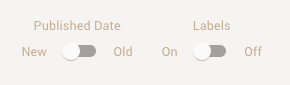
Published Date controls the sort order of the figures. When set to New, figures are sorted from newest to oldest. When set to Old, figures are sorted from oldest to newest.
Labels controls the labels that appear below the figures in the Figure Gallery. When set to On, the labels appear. When set to Off, no labels appear, allowing more space to display figures.
The remainder of the header contains the global navigation for the COVIC website (covic-archive.org). The COVIC Contains page documents the Article and Figure attributes found in the Filter Bar (see below).
Filters
The Filter Bar is used to find and filter sets of figures that share specific attributes. It consists of three parts: Search, Article Attributes, and Figure Attributes.
Search
Search will limit the display to those figures that contain the text you type in article titles. The search for a single word string will find exact or expanded matches. "mask" will also find "masks". Searching for multiple words will find exact matches only.
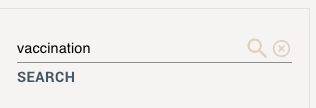
Type the search term above the SEARCH line and either type ENTER or click on the search icon.
Clicking on the (X) icon will delete the search and reset the gallery display.
Search works in combination with the Article Attributes, and Figure Attributes to filter the Gallery display.
Article Attributes
Filtering with Article Attributes will control the Gallery display using logical OR in combination with logical AND operations.
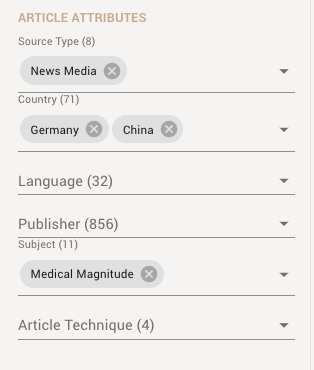
Filtering with one attribute.
Filtering on Country: China will limit the Gallery to figures that appear in articles whose publisher is based in that country.
Filtering with two or more attributes in the same filter category
Adding another attribute in the same filter category expands the display to include figures that have either of the attributes (logical OR). Filtering on Country: China and Country: Singapore will limit the Gallery to figures that appear in articles whose publisher is based in either of the two countries.
Filtering with two or more filter categories
Adding an attribute from a different filter category limits the display to include figure that have both attributes (logical AND). Filtering on Country: China and Country: Singapore and adding Subject: Medical Magnitude will eliminate figures from articles that do not have this subject.
Date Range
Figures share the publication date of their article. Use the From and To date range to limit the Gallery to figures that were published between these dates.
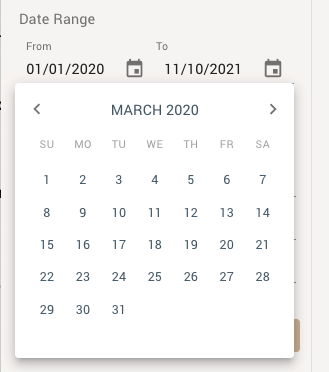
Figure Attributes
Filtering with Figure Attributes works the same as Article Attributes. Where the article categories are shared by all figures in an article, the figure categories are specific to each figure. One article may contain bar charts, line charts, and choropleth maps. Adding Visualization Type: choropleth map will limit the Gallery to only the choropleth map figures.
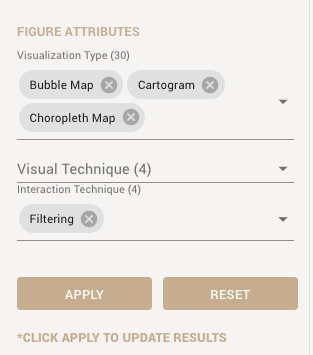
Figure Attributes behave in combination the same as Article Attributes. Choosing Visualization Type: Choropleth Map and Bubble Map will display figures with either of these visualization types.
APPLY & RESET
Clicking APPLY will search and/or filter the Gallery based on the text in the SEARCH line, the attributes chosen in the filters, and the Date Range settings.
The APPLY button becomes active when a filter or search term has been added or modified.
Clicking RESET will erase any search and filter settings and return to the default Gallery display. RESET will also return thee Published Date and Labels switches to their default setting.
Figure Gallery
Most of the screen is taken up by the Figure Gallery. Each figure is displayed with a subset of metadata appearing below the image. This is a matrix of figures in the collection, which changes based on changes to the filters and switches.
By default, the Gallery displays figures in reverse chronological order by publication date. The number of figures displayed depends on the width of the screen.
The switches will modify the display. The Published Date switch will change the chronological sort order. The Labels switch will turn the labels on (visible) or off (invisible) below the figures.
FIGURE Modal
Clicking on a figure image opens a modal with several states. The state of the modal is controlled by the buttons on the top left of the screen.
FIGURE
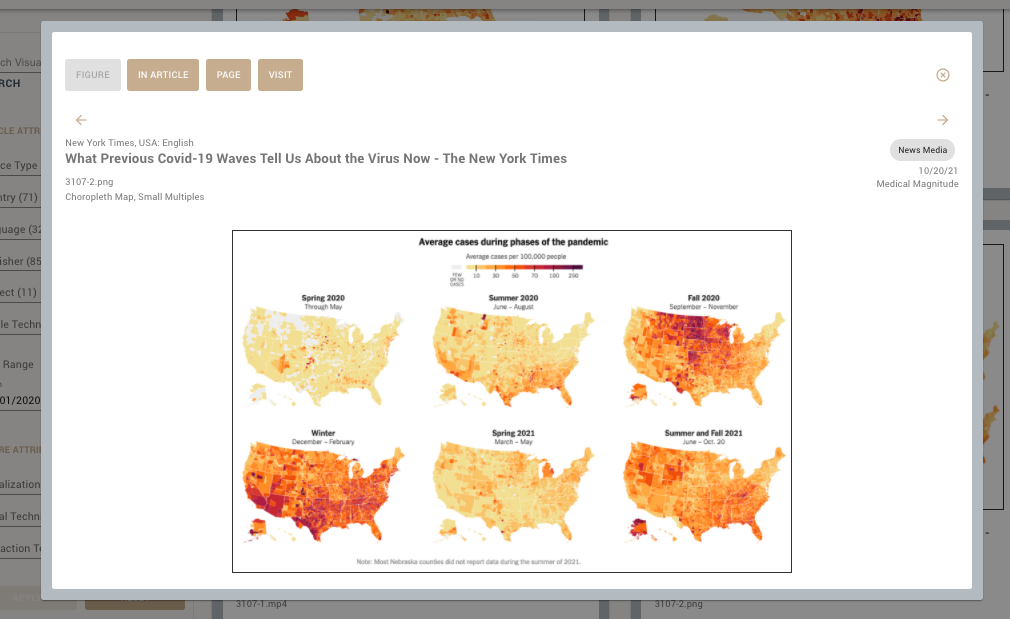
The Figure display shows a larger subset of metadata above a larger Figure image. The size of the image will vary depending on the size of the browser window.
The Previous and Next arrows above the metadata labels will navigate to the previous and next Figure according to the order of the Figure Gallery from which the Figure Modal was launched. When there is no Previous or Next figure, the corresponding arrow will not appear.
Animations and Video files
If a Figure is an animated GIF, the animation will play when the figure is displayed.
If a Figure is a video file (MP4), the video will not play automatically. To play the video, use the controls that appear at the bottom of the image.

IN ARTICLE
Each Figure is from one Article. Each Article contains one or more figures.

Clicking IN ARTICLE will display all the figures from the same article. The number of Figures in the Article appears above the first Figure.
PAGE
The COVIC collection includes page images for most articles. These have been saved to provide context for the figures. Depending on the type of article, the page image is either a bitmap image (PNG, JPG) or a PDF version available from the source website.

Clicking on PAGE will display the bitmap image below a subset of the metadata or will display the PDF version in a separate browser window.
VISIT
Each Figure is associated with an Article. Each Article is associated with an online address (URL). Clicking on VISIT will launch this URL from which the Article was recorded in a separate window.
When using VISIT, the archived Figures in COVIC may not correspond to the current content of the page from which they were archived. Some percentage of Figures archived in COVIC are static and remain available online in their originally published state. However, many Figures are dynamic, generated from data that changes on a timely basis. Some pages will have been edited and revised after they were recorded.